 Routify
 en
en Русский
Watermark and logo removal
A text or image watermark on incoming photos, and removing someone else's logo from a source's photos.
Both features change photos and video covers before delivery. The video clip itself is never processed.
Watermark
Add Watermark exists for the chat and for a source; the source setting replaces the chat one. Available from the Ultra plan. There are two kinds of mark — the Text / Image switch under the main toggle; exactly the selected kind is drawn.
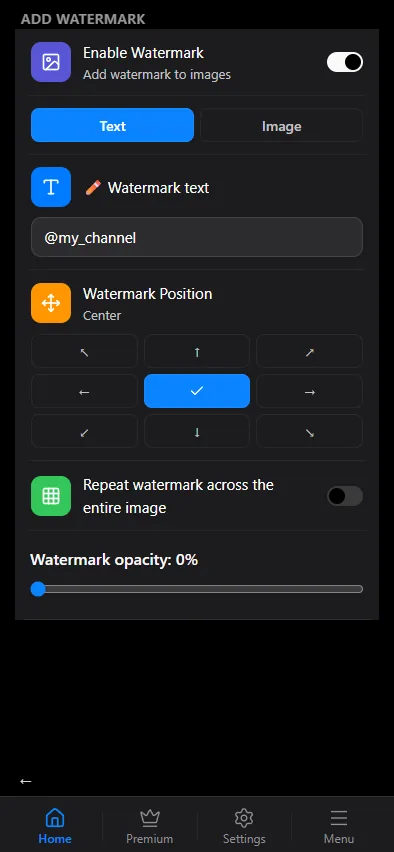
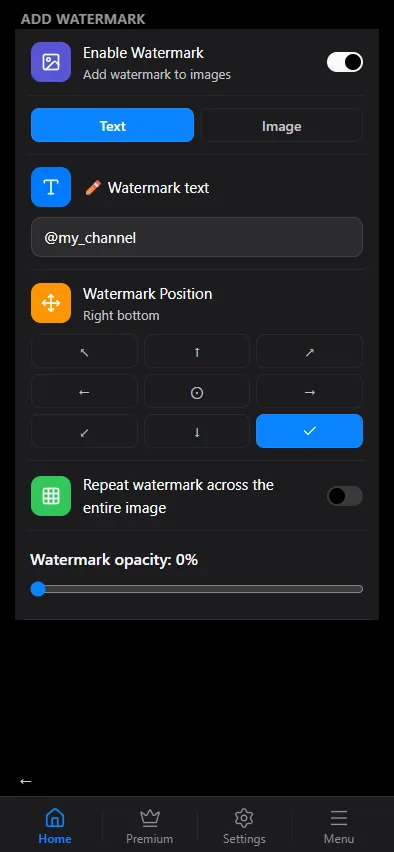
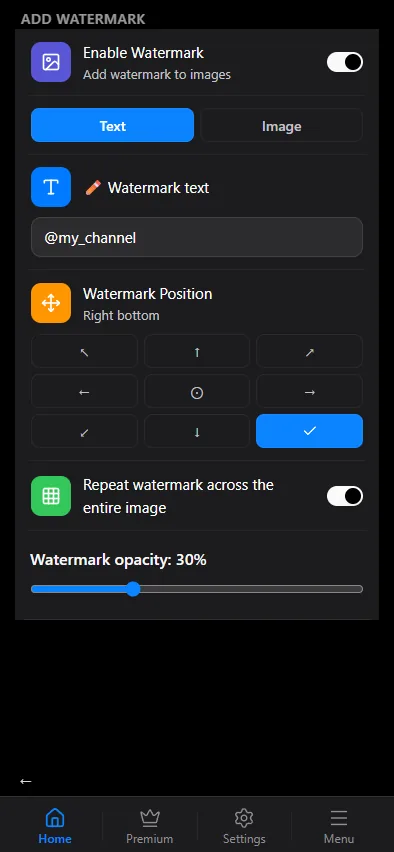
- Switch on Enable Watermark.
- Choose Text and type it in the field, for example
@my_channel. An empty field means no watermark. - Pick the position on the 3×3 grid, or switch on Repeat watermark across the entire image for a tiled pattern.
- Set the watermark opacity: 0% is a solid mark, the higher the value, the fainter it gets.
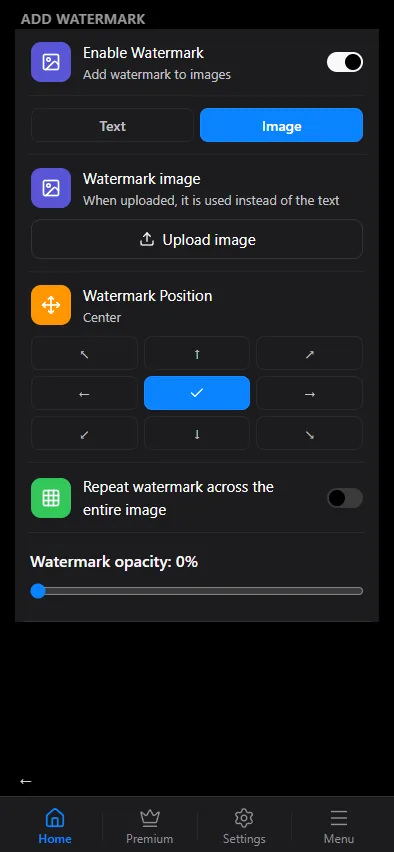
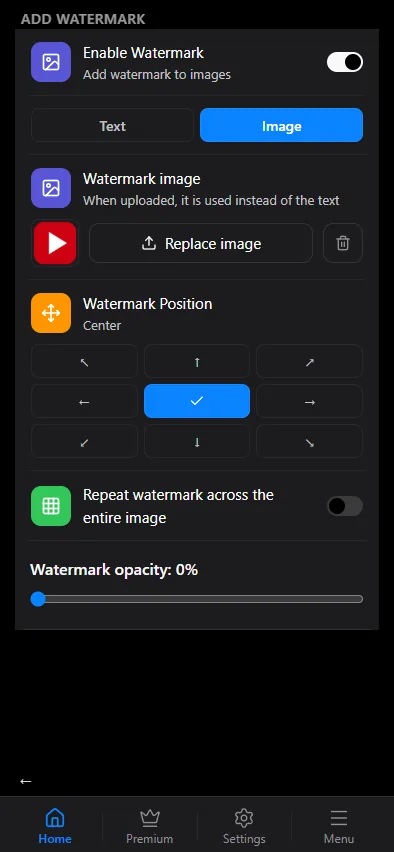
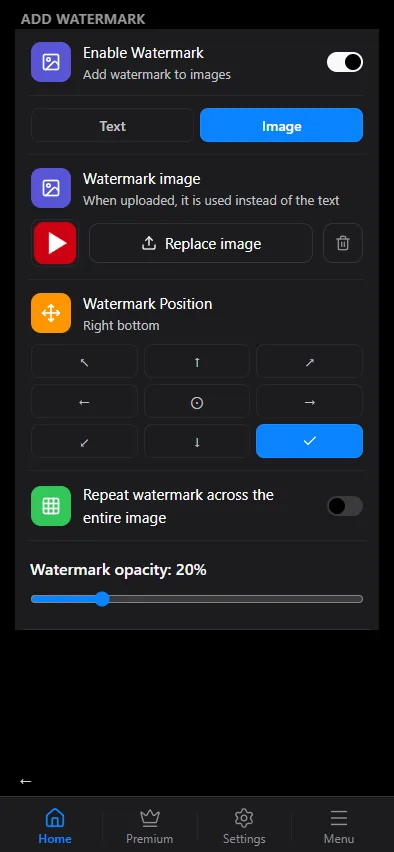
- Switch on Enable Watermark and choose Image.
- Tap Upload image and pick a file — a PNG with a transparent background works best. A preview appears next to the button; Replace image uploads another one, the bin removes it.
- Pick the position on the 3×3 grid, or switch on Repeat watermark across the entire image.
- Set the watermark opacity.
The uploaded image is stored on our side and applied to every photo of the chat or source.
The result is saved at high JPEG quality, so the photo does not come out softened.
Logo removal
Channels often stamp their logo or caption on photos — in one corner or another, larger or smaller. Logo Removal in a source's settings finds that logo on every incoming photo of the source and erases it, redrawing the background underneath. Available on the Ultra plan and above.
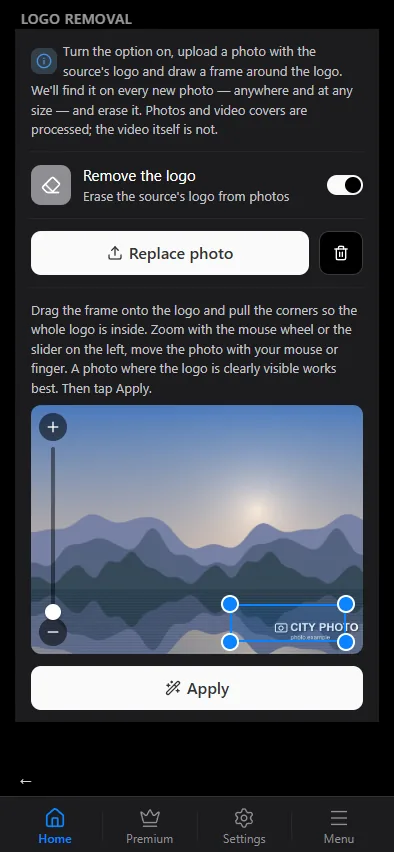
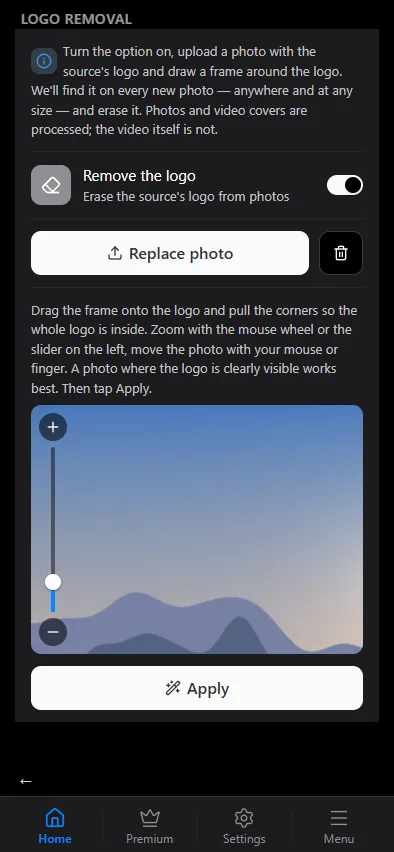
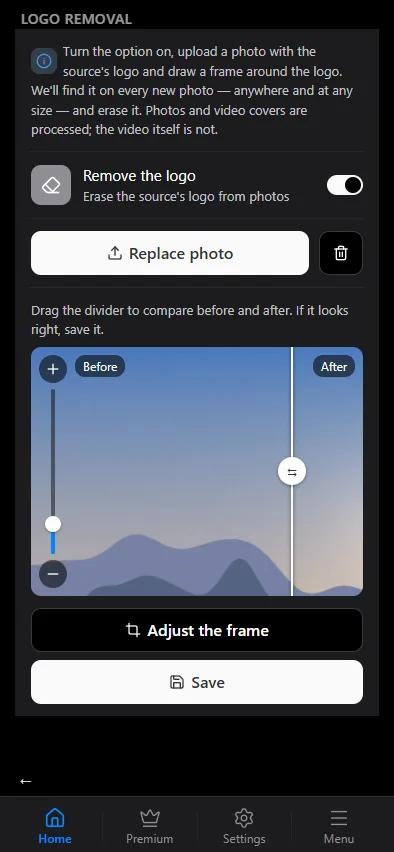
- Switch on Remove the logo and tap Upload a photo with the logo — pick a photo from this source where the logo is clearly visible.
- Drag the frame onto the logo and pull the corners so the whole logo is inside. A small logo is easier to frame zoomed in: the mouse wheel, the slider on the left or the + / − buttons; drag the photo itself to move it.
- Tap Apply — the server removes the logo from that photo, usually in a few seconds.
- A Before / After divider appears: drag it to compare. If the logo is gone cleanly, tap Save; if not, tap Adjust the frame and draw it more precisely.
Once saved, the logo is searched for on every new photo of the source anywhere in the frame and at any size, while the photos' own captions and signs are left alone. If the source's logo varies (light and dark, different text), add another example — up to three; they are listed under Saved logo examples.
Logo removal is per source only: each channel has its own logo.
Order
The source's logo is removed first, then the watermark is applied, so your mark is never erased.
What it applies to
Photos delivered as copies. When the post is a plain Telegram forward — the original message with its "Forwarded from" header — the media stays exactly as the source published it and cannot be processed; copy or forward is chosen in the source's delivery mode.