 Routify
 en
en Русский
Managing sources
The list of sources, the source card, sending the latest post and history, the delivery log and source-level settings.
The list
List of sources in the chat settings shows every source of the chat: the chat's icon and name, its type — channel, group, person or bot — and the account it is read through. Filter the list by name or hide inactive sources.
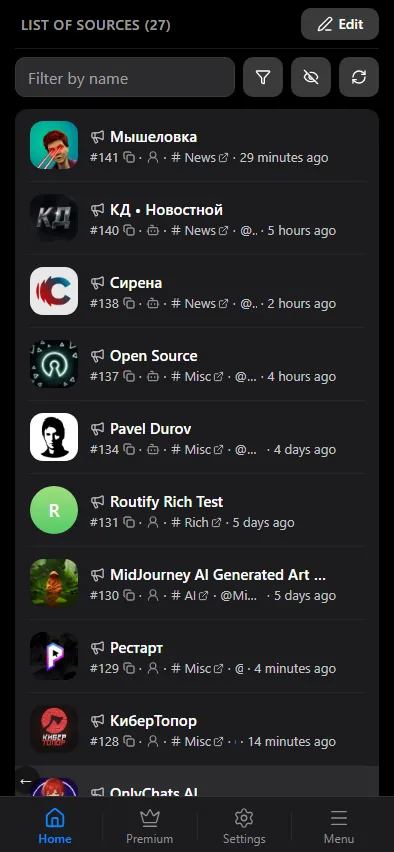
Edit switches to selection mode. Select sources and apply an action to all of them at once: enable, disable, delete, copy the settings of one source, apply the copied settings to the selected ones. At the bottom of the list: enable or disable all sources, export the list, import a list.
The toggle next to a source shows whether it is delivering. A source can be off for three reasons: you switched it off, the plan limit no longer covers it, or the account it is read through was disconnected. The second case appears after a plan downgrade; the sources beyond the limit stay in the list and switch back on when the limit allows. The third ends when you connect the account again.
The source card
Tap a source to open its card. The top block shows the chat: its title, its public name if it has one, the type and the account.
Above the settings are two reference lines: Read by (for example, Your account) with the Source ID, and Delivered via — Bot or Account. The delivery path is chosen when the source is added and cannot be changed here; to deliver differently, add the source again, see Delivery modes.
Switches:
- Source active — pause or resume delivery without deleting the source.
Buttons:
- Sent messages — the delivery log of this source.
- Send latest post — deliver the newest message of the chat now. Useful after changing the template or the filters: the result arrives within a minute.
- Copy history — walk through the past messages of the chat, oldest first, with pauses so that Telegram's limits are not hit; the run continues in the background. Filters and the rest of the pipeline apply to every message as if it were new.
- Delete source — at the bottom, in red. Asks for confirmation, then removes the source and returns you to the list. The messages already delivered stay where they are.
Source-level settings
The Settings block repeats the pipeline sections of the chat. A source-level section either replaces the chat section or is merged with it; the choice is shown at the top of the section as a mode with two options, Replace and Add to. In Add to mode a chat-level rule cannot be switched off for one source.
| Section | Plan |
|---|---|
| Message content | Pro |
| Delivery mode: copy or forward | Pro |
| Sync | Pro |
| Message template | Pro |
| Message filtering and the time filter | Pro |
| Text replacements | Pro |
| Translation | Pro |
| AI processing | Expert |
| Watermark | Ultra |
| Logo removal | Ultra |
The similarity filter is shared by the whole chat: a source's settings do not have it, it is set up only in the chat's filters.
A blue dot next to a section in the settings menu — of a source or of a chat — means something in it is switched on or configured.
Every section has Reset values at the bottom: the source goes back to the chat's settings for that section.
The delivery log
Messages from sources in the chat settings and Sent messages in a source card show the same log from two angles. Every row is a message with its status: delivered (with a link to the message in the destination), filtered (with the filter that caught it) or failed (with the error). Filter the log by status, source and date.
Expanding a row shows the pipeline trace for that message: which filters, replacements, AI steps and translation ran, and the outcome of each.
Warnings
Warnings in the chat settings collects the problems that stop delivery — with the moment each appeared — so that a silent chat is explained without reading the log. The account's own status is in the Accounts tab.