 Routify
 en
en Русский
The mini app
A map of the control panel that opens from the bot.
The mini app is a Telegram web app: it opens inside Telegram from the bot's menu button or from the button under /start. It is where accounts are connected and where every destination chat, every source and every setting is managed.
Home
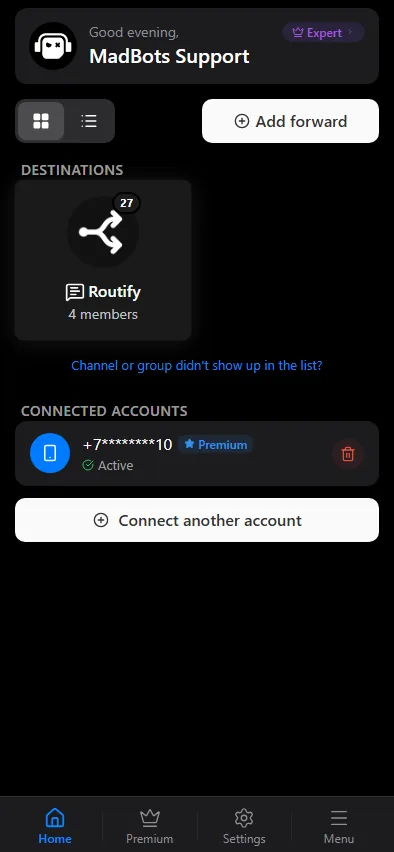
The home screen lists the chats Routify delivers to — every one with its own sources and its own settings. The Add chat button connects a new destination: a channel, a group, a topic in a forum group or a private chat, see Destinations. Until an account is connected the screen says so and points you to the Accounts tab.
Chat settings
Tap a chat card to open its settings. The screen is a hub of sections:
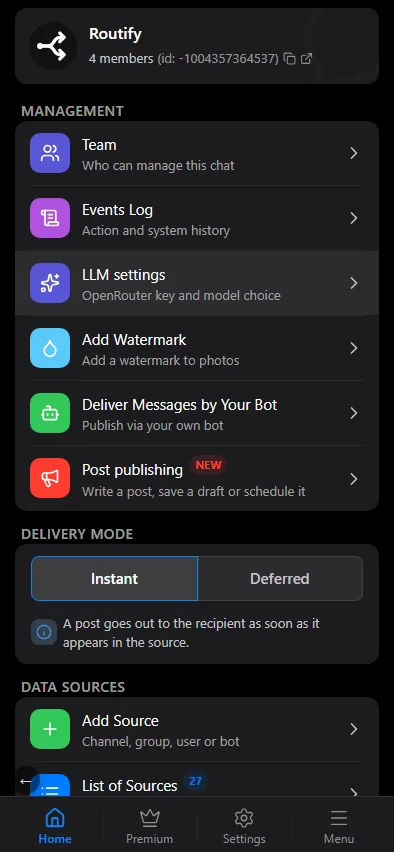
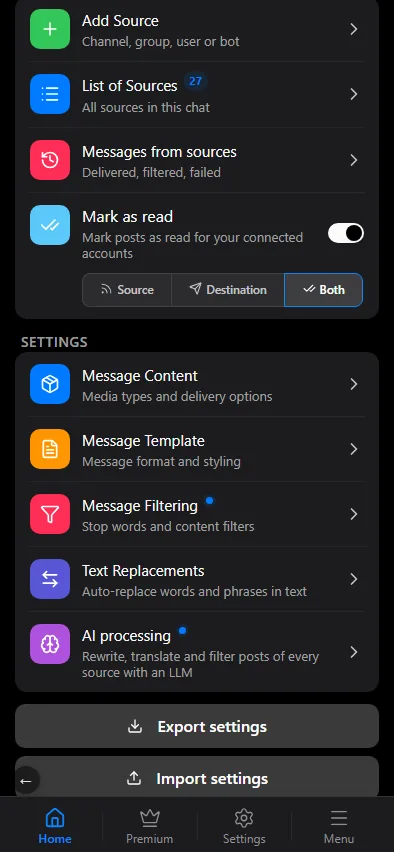
- Sources — Add source, the list of sources with a counter, and Messages from sources: the delivery log with delivered, filtered and failed messages.
- Delivery — Deliver Messages by Your Bot (your own bot), Mark as read and the Delivery mode switch between Instant and Deferred; Deferred requires a paid plan and opens the deferred posting settings. The messages awaiting a decision live not there but in Schedule and queue.
- Configuration — the pipeline sections: Message content together with sync of edits and deletions, Message template, Text replacements, Message filtering with the time filter, AI processing, Translation, Watermark and logo removal, Custom Bot.
- Management — History of what was delivered, the Events Log: what was not delivered and why, and what clones updated — tap an event to open its card, Warnings: the problems that stop delivery, Post publishing (your own post by hand) and Schedule and queue — the calendar and list of everything waiting to go out; that row shows up only when the queue is not empty, and it carries a counter.
A blue dot next to a section — here and in a source's settings — means something in it is switched on or configured.
Sections that your plan does not include show a banner with the plan that unlocks them; the controls are visible but read-only.
At the bottom: Export settings / Import settings, see Import and export.
Source settings
Every source repeats the pipeline sections of the chat. A source-level section either replaces the chat section or is merged with it — the choice is shown at the top of the section as a mode with two options, Replace and Add to. See Managing sources. The source card is also where the Delivery mode is chosen — Copy or Forward, see Delivery modes.
Tabs
The bottom bar has five tabs.
- Home — destination chats and their sources.
- Accounts — the connected Telegram accounts: connect another one, check the status, disconnect. See Connecting an account.
- Digests — scheduled AI summaries of several sources. See Digests.
- Premium — plans with prices, the trial and the current subscription. See Plans.
- Menu — the interface language, news, support contacts and our other bots.
Time zone
The delivery window and the schedules of deferred posting use the chat's time zone; it is shown at the top of those blocks. The interface language follows the language chosen in the bot.