 Routify
 en
en Русский
Connecting a Telegram account
Phone number, confirmation code, two-factor password; connecting several accounts; disconnecting.
Routify reads sources through a Telegram account you connect — the bot then sees the chats that account sees. Without an account there is nothing to read: connecting one is the first thing to do in the Accounts tab of the mini app.
Why an account
A bot only receives messages from chats it has been added to, and it cannot be added to a private channel or a group you do not manage. Your account already is in those chats. Routify signs in to Telegram as that account — the way a second phone or a desktop app would — and receives the same updates. The account is also what sends the messages when you choose delivery from the account rather than by the bot, see Delivery modes.
Connecting
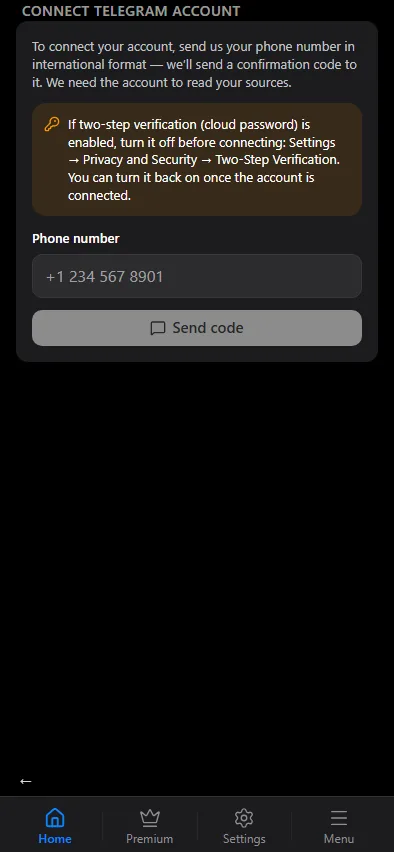
- Open the Accounts tab and press Connect Telegram account (or Connect another account when one is already connected).
- Phone number — enter it in international format, for example
+1 234 567 8901, and press Send code. - Code — Telegram sends a confirmation code to that account, as it does when you sign in on a new device. Enter it and press Confirm.
- Two-factor password — if the account has a cloud password, the app asks for it next. Enter it and press Confirm.
The app reports Account connected, and the account appears in the list.
If you are connecting the same account you are using Telegram in right now, type the code with underscores between the digits, for example 1_2345. A code typed as is into a chat of the same account is treated by Telegram as leaked, and the sign-in is rejected. The underscores are removed on our side.
Several accounts
Any number of accounts can be connected. Each has its own list of chats: when you add a source or a destination, you first pick the account, then a chat of that account. One account can serve as the reader of the sources and another as the sender for the destination.
The list in the Accounts tab shows every account with a partly masked phone number and its status.
When an account stops working
A session can end outside Routify: you terminate it in Telegram's Settings → Devices, or Telegram signs it out. The app re-checks the session and marks the account inactive; the sources and destinations bound to it stop until you connect the account again — the same phone, code and password steps.
If the account unsubscribed from a channel
Sometimes the account a source channel is read through unsubscribes from it or leaves it. If the channel is public, delivery does not stop: Routify switches that channel to its own built-in service session and keeps reading it. While the channel is read this way, its edits and deletions are not synced; subscribe to it with the account again and reading goes back to the account.
A private channel or group cannot be read this way: for those the account has to stay subscribed.
Disconnecting
Tap an account in the Accounts tab and press Disconnect; the app asks Disconnect this account? and warns that all forwards bound to it will be deactivated. Confirm, and:
- every source read through this account and every destination that sends from it is paused;
- the session is deleted on our side.
The session also shows up in Telegram's Settings → Devices as an active device; you can terminate it there at any time, before or after disconnecting. How sessions are stored and what the bot can and cannot do with them is in Security.