 Routify
 en
en Русский
Adding a source
Pick a chat of a connected account or paste a link, and what happens after that.
A source is a Telegram chat that a connected account can read. It is added inside a destination: open the chat on the home screen of the mini app and press Add source. Two ways from there — pick a chat from the account's list, or paste a link.
Pick a chat of an account
- If several accounts are connected, pick the one that is in the chat you need.
- The app lists the chats of that account, the way you see them in Telegram. Narrow the list with the type chips — All, Channels, Groups, Users — or type a name into the search field.
- Tap a chat. In a group with topics you can narrow the source down to one topic; otherwise the whole group is the source.
The source appears in the chat's list with its own settings.
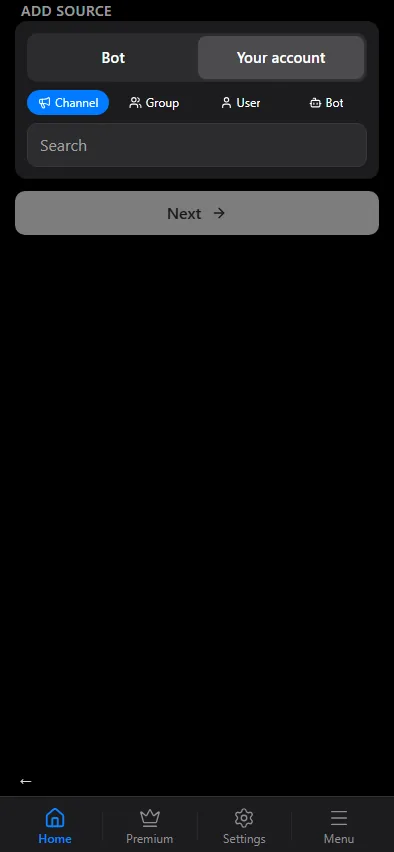
The list contains everything the account has a dialog with: channels it is subscribed to, groups it is a member of, people it has written to, bots it has started. A chat you cannot see in Telegram under that account will not be in the list either — join it first.
Paste a link
The field under the list accepts a link instead:
- A public chat —
t.me/<name>. The app resolves the name and shows the chat's title and type. If nothing is found, the app says Chat not found. Make sure the link is correct and the chat is public. - An invite link —
t.me/+…. Private chats have no public name, so such a link is resolved through the connected account; pick the account that is a member of that chat, or join through the link under that account first.
Either way the source is still read through the account: the link only saves you scrolling through the list.
What can be a source
- A channel — public or private, yours or somebody else's; the account only needs to be subscribed.
- A group or a supergroup, including one topic of a forum group.
- A private chat with a person: the messages that person sends you.
- A chat with another bot: what that bot sends to the account — useful for chaining bots.
Rule of thumb: if the account receives the message, Routify can forward it. If the account leaves the chat or is removed from it, the messages stop.
Limits
- Number of sources is the main plan limit and is counted across all your destination chats; disabled sources do not count — the numbers are in Plans.
- A chat cannot be its own destination. The app refuses to add a chat as a source of the destination it already is: Can't forward a chat into itself — pick a different destination.
After adding
Delivery starts with the next message in the source. The source card offers two ways to get something now: Send latest post delivers the newest message of the chat, Copy history walks through the past messages one by one. Both, the card and the source-level settings — media types, filters, replacements, translation, AI, template, delivery — are described in Managing sources.