 Routify
 en
en Русский
Message template
Header and footer, your own template built from variables, inline buttons.
Message template controls how a delivered post looks. It exists for the chat and for every source; a source template replaces the chat one.
Available from the Pro plan.
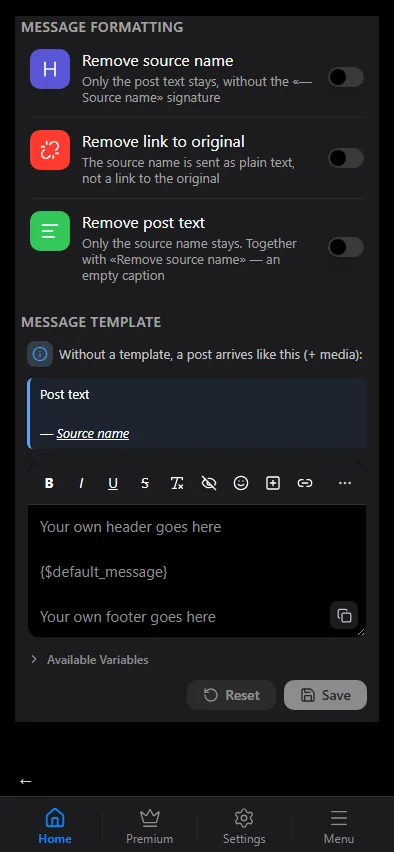
Message formatting
Four toggles at the top of the screen, above the template editor. They are independent of it — they apply to every message right away, even while the editor itself is locked:
- Remove title — drop the source name and the post title; only the text remains.
- Remove link to original — in the base message the title arrives as bold text instead of a link to the post. It does not touch your own template: there
{$media_title}is always plain text, and you add the link yourself —<a href="{$media_url}">{$media_title}</a>. - Remove post text — only the header remains; together with "Remove title" the caption is empty and only the media arrives.
- Title below the text — swap the two halves of the message: the post text first, the title with the link to the original underneath. Useful when the title repeats the first line of the text and gets in the way of the chat-list preview.
Header and footer
The simplest layout. Header is added before the text of every post, Footer after it; both accept Telegram HTML and premium emoji. Apply to media-only messages decides whether a photo or video that arrived without a caption also gets the header and footer.
The base message
Without a template a post arrives as the base message — its text as it came from the source chat, after filters, replacements and AI. The section shows what it looks like, so you can decide whether you need a template at all.
Your own template
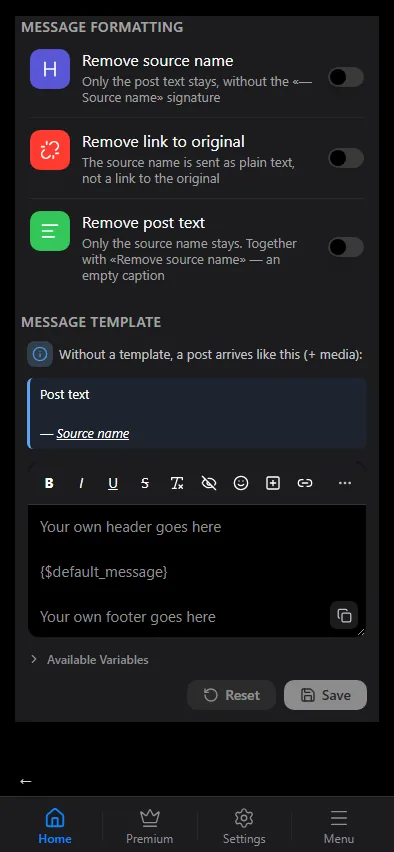
The editor starts with a single line, {$default_message}, which stands for the base message. Type your header above it and your footer below, or replace it entirely with the variables:
| Variable | Meaning |
|---|---|
{$default_message} | the whole base message |
{$media_title} | the first line of the post |
{$media_description} | the rest of the post |
{$source_title} | the source name |
{$source_username} | the source @username |
{$source_url} | the link to the source chat |
{$media_url} | the link to the original post |
{$source_type} | the kind of source: channel, group or user |
{$author} | the author of the message |
Telegram posts have no separate title, so {$media_title} is the first non-empty line and {$media_description} everything after it; a one-line post lands in both. A variable that has no value for a post — a link for a chat without a public username, say — is simply left out.
Formatting is Telegram HTML: <b>, <i>, <u>, <s>, <code>, <a href="…">, <tg-spoiler>. The toolbar inserts them.
Example of a channel template:
<b>{$source_title}</b>

{$media_description}

<a href="{$media_url}">Original</a> · @mychannel
Reset and Save sit at the bottom of the editor, with a "You have unsaved changes" hint once you start typing.
Send test message is available in a source's template: one tap, and the bot sends the latest post of that source to your private chat, formatted with the template as it is in the editor right now — even unsaved — media included. Use it to see the real result before saving.
Buttons
Inline buttons under the message are added in the same editor with Add button: a link, a title and, optionally, a premium emoji. Telegram does not allow buttons under media groups (albums), so the buttons appear under single-media and text posts only.
Custom emoji
Premium emoji in a template are written as <tg-emoji emoji-id="…">😀</tg-emoji>; the emoji picker in the template editor inserts them for you. How they reach the readers is explained in Custom emoji.
Length
Telegram limits a text message to 4096 characters and a media caption to 1024. The template counts towards the limit, so keep headers and footers short for chats where most posts are photos with a caption.